1. CHARGE AND TURN ON FITBIT.

Charging

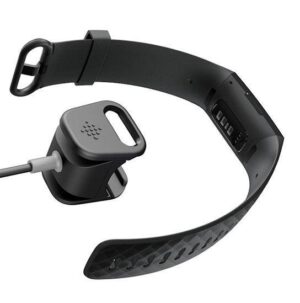
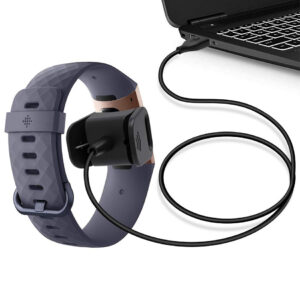
Charging fully takes about 1-2 hours. While the tracker charges, you can press the button to check the battery level. A fully-charged tracker shows a solid battery icon with a smile.

1. Plug the charging cable into the USB port on your computer, a UL-certified USB wall charger, or another low-energy charging device.

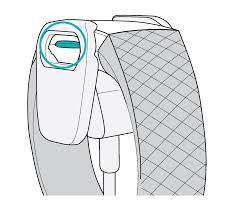
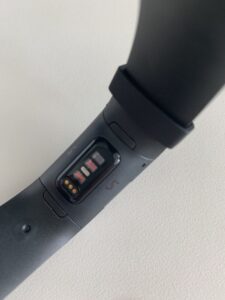
2. Clip the other end of the charging cable to the port on the back of Charge 4. The pins on the charging clip must lock securely with the gold contacts on the back of the tracker. Charge 4 vibrates, and a battery icon appears on the screen.

Turning On

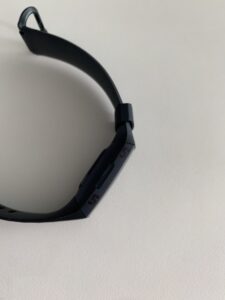
Turn on the device by gently tapping the left side of the device.
2. DOWNLOAD FITBIT APP.
If providing participant with iPhone:
Pre-download Fitbit app onto iPhone prior to providing to participant.
If participant using own iPhone:
Download Fitbit app onto your own device and continue the following steps.
Download App Here
Apple devices
Apple App Store
Android devices
Google Play Store
Windows 10 devices (phones, tablets, and computers)
Microsoft Store
3. LOG IN TO FITBIT APP.

CHOP PARTICIPANT ACCOUNTS

Study IDATOMIC App PasscodeFitbit EmailFitbit Password
ATOM20-0001-CHOPchop001atomic.chop1@sickkids.caatomicchop
ATOM20-0002-CHOPchop002atomic.chop2@sickkids.caatomicchop
ATOM20-0003-CHOPchop003atomic.chop3@sickkids.caatomicchop
ATOM20-0004-CHOPchop004atomic.chop4@sickkids.caatomicchop
ATOM20-0005-CHOPchop005atomic.chop5@sickkids.caatomicchop
ATOM20-0006-CHOPchop006atomic.chop6@sickkids.caatomicchop
ATOM20-0007-CHOPchop007atomic.chop7@sickkids.caatomicchop
ATOM20-0008-CHOPchop008atomic.chop8@sickkids.caatomicchop
ATOM20-0009-CHOPchop009atomic.chop9@sickkids.caatomicchop
ATOM20-0010-CHOPchop010atomic.chop10@sickkids.caatomicchop

UAB PARTICIPANT ACCOUNTS

Study IDATOMIC App PasscodeFitbit EmailFitbit Password
ATOM20-0001-UABuab001atomic.uab1@sickkids.caatomicuab
ATOM20-0002-UABuab002atomic.uab2@sickkids.caatomicuab
ATOM20-0003-UABuab003atomic.uab3@sickkids.caatomicuab
ATOM20-0004-UABuab004atomic.uab4@sickkids.caatomicuab
ATOM20-0005-UABuab005atomic.uab5@sickkids.caatomicuab
ATOM20-0006-UABuab006atomic.uab6@sickkids.caatomicuab
ATOM20-0007-UABuab007atomic.uab7@sickkids.caatomicuab
ATOM20-0008-UABuab008atomic.uab8@sickkids.caatomicuab
ATOM20-0009-UABuab009atomic.uab9@sickkids.caatomicuab
ATOM20-0010-UABuab010atomic.uab10@sickkids.caatomicuab
4. GO TO 'USER PROFILE' (TOP LEFT-HAND CORNER).
5. CLICK ON 'SET UP A DEVICE'.
Follow the on-screen instructions to connect (“pair”) the Fitbit device to your phone (or study iPhone). The instruction video on the right may also be useful.
Once completed, the Fitbit device will be linked to the Fitbit account. For participants using their own iPhone, the Fitbit should automatically connect upon logging into their account in the Fitbit app.

TIP: Keep track of which device is linked to which account/login by labeling the device and keeping a linkage log.

If linking multiple devices to accounts at once, it can be easy to mix up. It is helpful to label the device number in multiple spots along the side of the device using a black permanent marker. Then, track the device number with the account information (login and password) to which it has been linked.

TROUBLESHOOTING: Fitbit syncing issues

Make sure Bluetooth on your device is turned on
Make sure the Fitbit App is granted permission to access Bluetooth on your device
If the Fitbit does not automatically sync upon logging into the app, they may need to go through the setup process again. 

6. CUSTOMIZE PARTICIPANT INFO IN FITBIT ACCOUNT
1. Record participant height/weight (measured at clinic visit) and stride length/heart rate zones (measured at exercise visit)
    • Intervention group: record at baseline visit
    • Waitlist-control group: collect record at repeat baseline visit
2. In web browser, log in to participant’s Fitbit account.
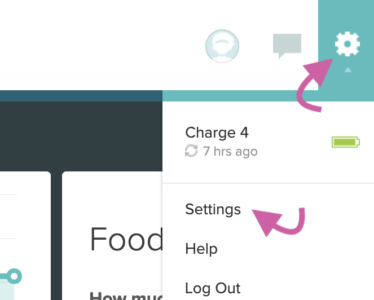
3. Click on ‘cog’ icon in top-right corner and go to ‘Settings’ icon in top-right corner. You will be directed to the ‘Personal Info’ page.
4. On this page, customize the following for your participant:
    • Height
    • Weight
    • Stride Length
    • Heart Rate Zones
    • Timezone (if needed)
Do not enter real participant info for the following (leave as-is):
    • Name
    • Sex
    • Birthday
    • Country