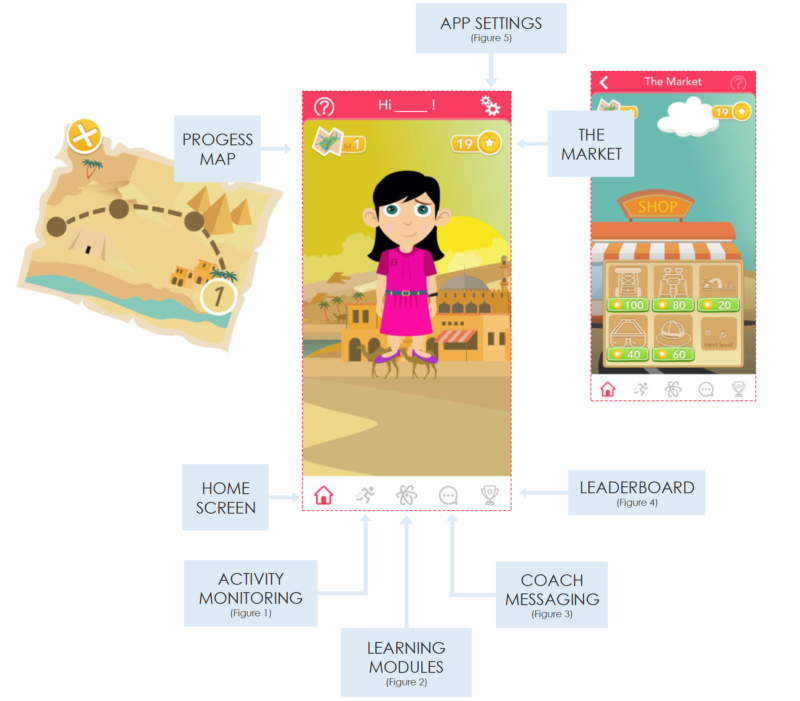
The ATOMIC app that you will be using will allow you to see your daily, weekly or monthly activity, heart rate and step counts.
FIG 2. LEARNING MODULES
Each week, you will complete a different set of modules containing information about how to become active and how to overcome things that might get in your way of becoming more active along the way.
You need to go through each module completely e.g. click all the links before you can move on to the next learning module.
At the end of each module is a discussion board that you can use to ask questions or can make a comment and interact with other users and coaches.
Each time you complete a module you will earn coins and each time you comment or add to a discussion on the discussion board you will also earn coins
FIG 3. COACH MESSAGING
You can contact your coach with any questions or comments or if you just want to chat about the program or what you should be doing. The coaches may not respond right away but they will get back to you within 24 hours. You can also work out good times to text with your coach if you need immediate feedback during your day.
FIG 1. ACTIVITY MONITORING
FIG 2. LEARNING MODULES
FIG 3. COACH MESSAGING
FIG 4. LEADERBOARD
The leaderboard captures which players have collected the most coins.
You can go to the leaderboard and encourage all the players to keep going and stay motivated in the game by giving them a high five and they will give you high fives back.
FIG 4. LEADERBOARD
FIG 5. APP SETTINGS
Avatar: This is where you can modify and customize your avatar by selecting a gender, hairstyle and color, skin color, eye and eyebrow shape, mouth and clothing.
Goals: This is where you can set or change your activity goals using the sliders. Your coach will discuss these with you.
Fitbit: This is where your FitBit is set up in the ATOMIC App. The study coordinator will assist you with this setup.
Notifications: This is where notification settings are set
**Please do not disable notifications at any point.